Converge allows you to have up to 5,000 individual login accounts for your employees. You can provide employee access and user rights during set up or afterwards. If an employee already has a Converge account, you can expand or limit their access anytime by clicking on the Employees tab.
Note: You must have Edit User Rights enabled on your account to change the rights a user has in Converge.
1. Click the Employees tab.

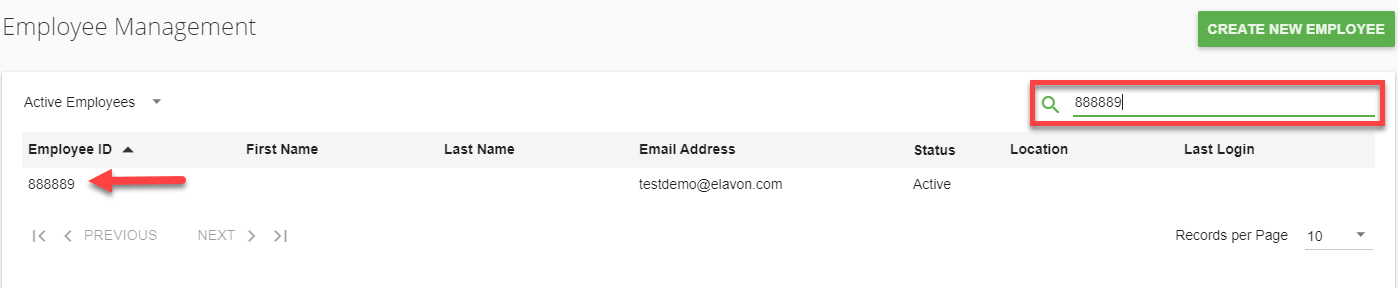
2. Select the User / Employee you wish to edit or use the Search field to find the employee whose rights you want to edit.
3. On the Edit Employee Information screen, click User Rights.
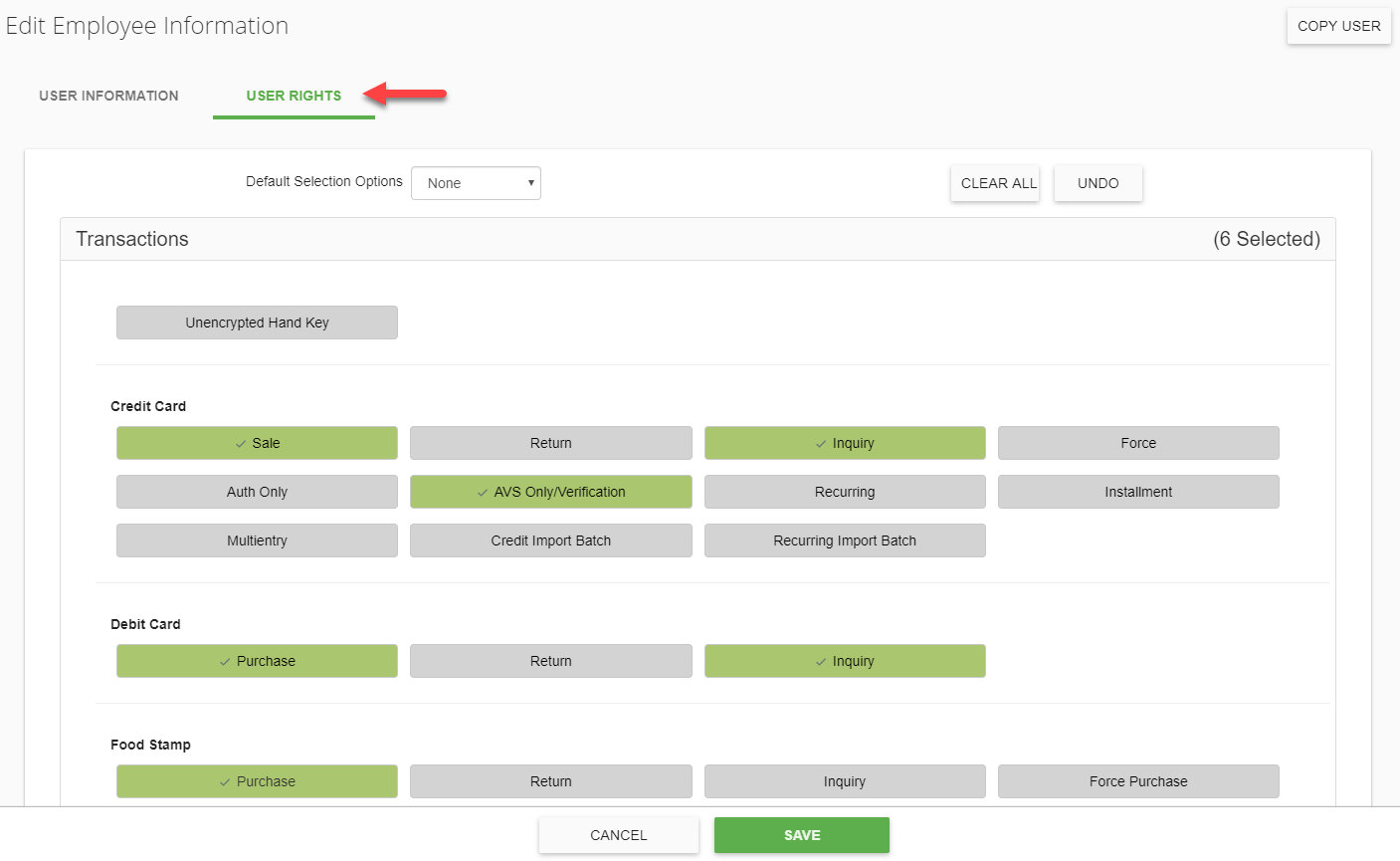
4. Click the category on the User Rights screen you want to edit. Click the user rights you would like to grant or remove. The user's current rights are highlighted in green, and rights the user does not have are grayed out.
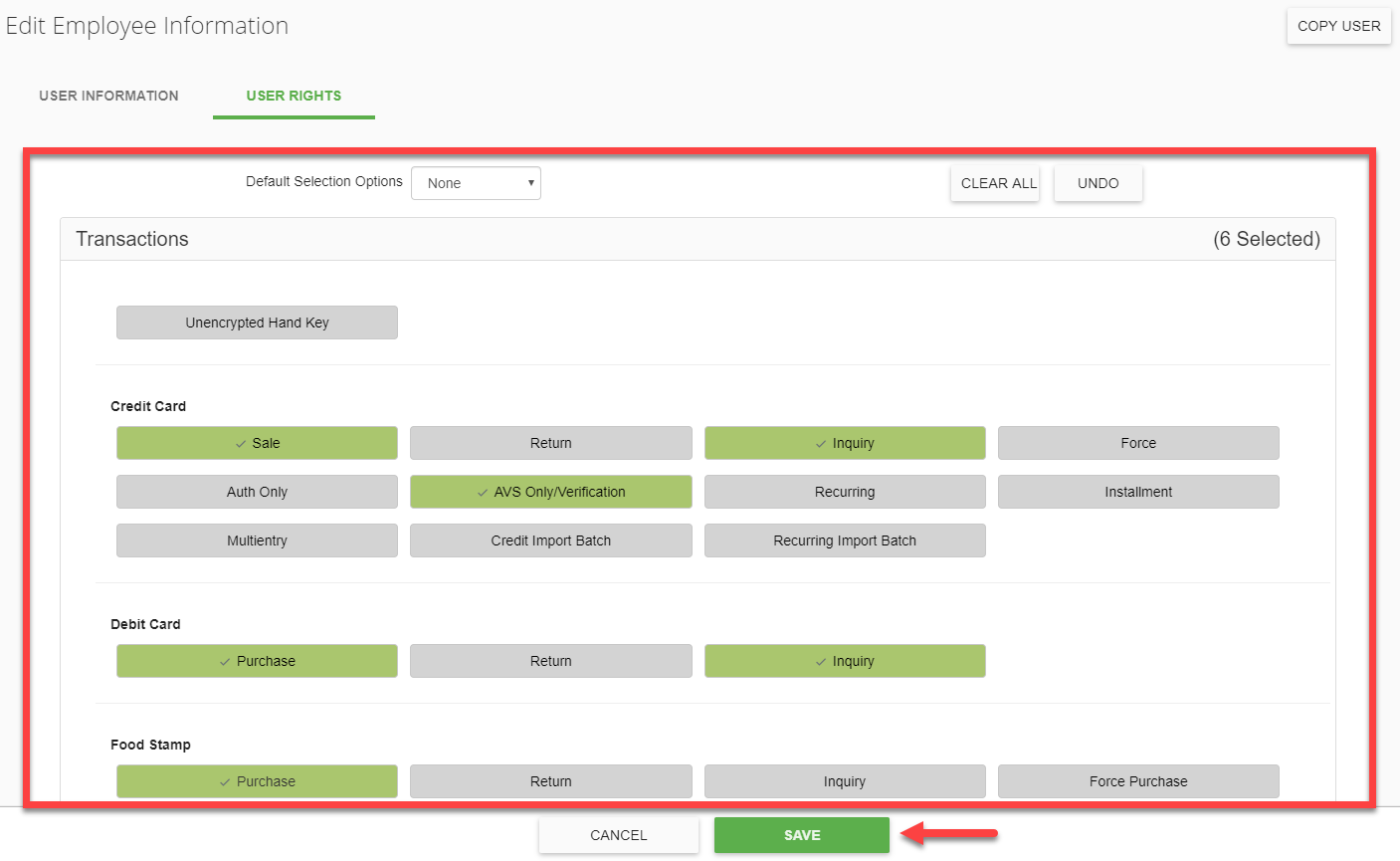
5. After you finish editing the permissions, click Save.